If you want to order a new iMac with an SSD there are two problems:
- An SSD of 256 gigabytes will cost you a lot: 600 euros.
- The SSD is of medium quality, and does not justify the cost of 600 euros.
Here you can find information about the Toshiba SSD that Apple provides.
You can consider buying an SSD for half the price and put it inside your new iMac yourself afterwards. However, this is a hassle and you will probably void your waranty.
The solution is to buy an SSD yourself and put it in an external Firewire 800 casing. Firewire 800 provides you with about 70 megabytes per second of troughput, which is enough for most applications. It is about three times faster than USB and the latency of Firewire is lower than that of USB, thus improving responsiveness.
Thunderbolt would provide the best solution, but as of July 2011, there are no Thunderbolt products on the market.
The product I use is an external 2,5 inch Firewire 800 casing of OWC: the Mercury Elite-AL Pro mini. This casing cost me about 60 euros or 80 dollars including shipping costs. I admit that this solution is not cheap, but it does work. And you won't void your warranty and it is way cheaper than the Apple SSD.
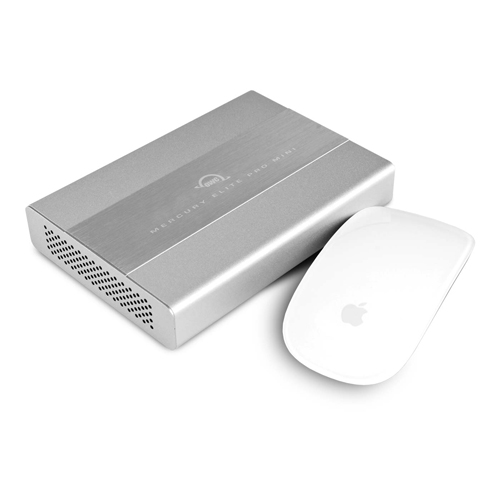

I've put my Intel SSD inside this casing and my mac boots in about 15 seconds. After entering username and password, login is almost instantaneously.
Caveat
I encountered one problem with the OWC casing. I encountered random system freezes, related to the external OWC housing. Using the internal 1 TB hard drive, I had no problems. The cause of this issue is probably related to power not being provided to the OCW casing after the systems returns from sleep.
I resolved this issue by connecting a special USB cable to the iMac and connecting the other end to the 5V DC Power Input on the OWC casing. After that, the daily random system freezes vanished. These cables can be obtained almost everywhere.